How to read a report
Understand Inbox/Spam/Other, Delivery report, and what “coming soon” means.
4 min read
Where to find the report
Open a test → click Report. You’ll see Overview and Delivery report tabs.
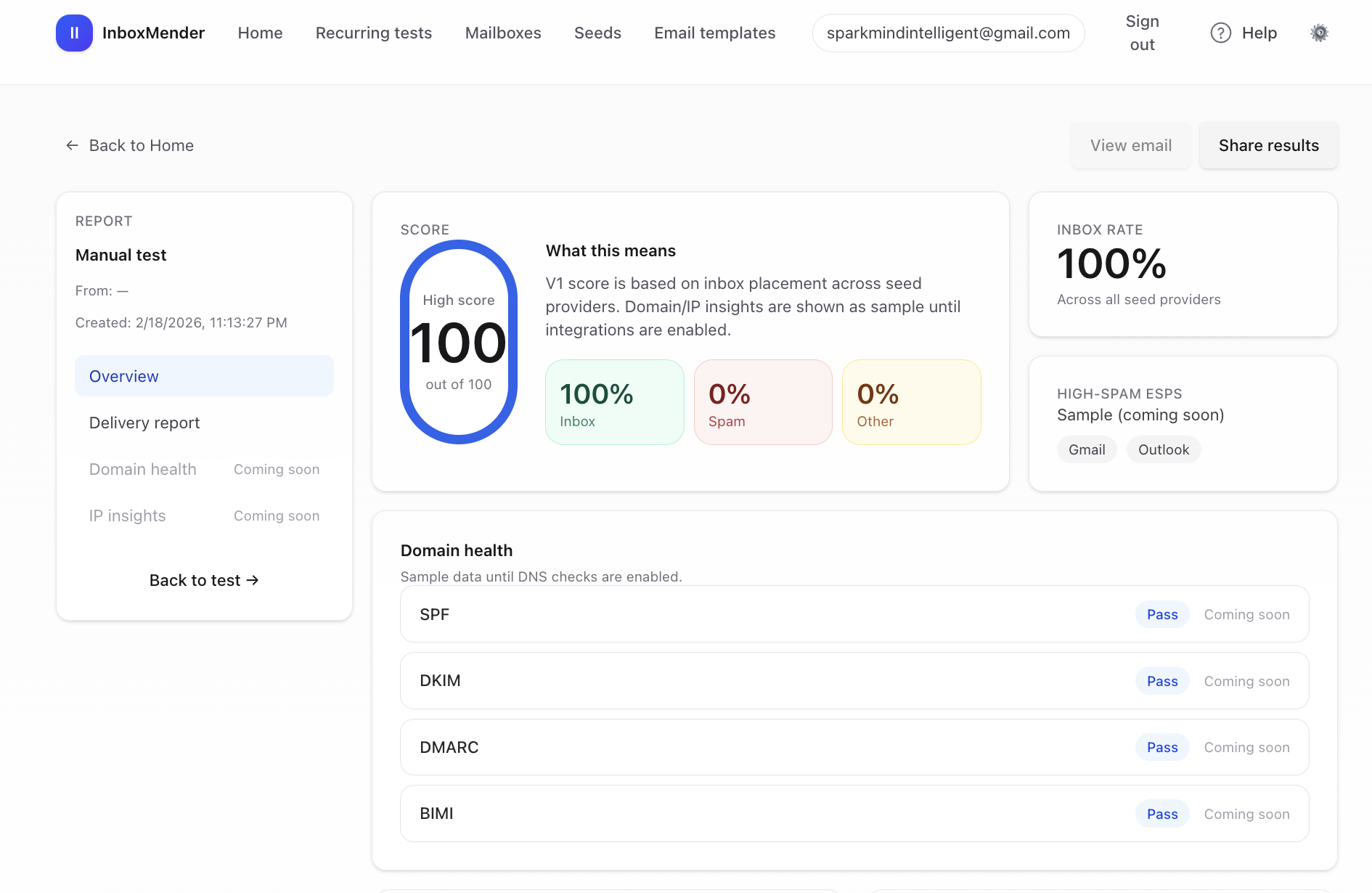
Overview: what the numbers mean
- Inbox: seed providers that placed your message in the inbox.
- Spam: seed providers that placed your message in spam/junk.
- Other: everything else (not found yet, unknown folder, or not synced).
If you only see “Other”
That usually means results weren’t synced yet. Configure seed inbox IMAP (II_SEED_ACCOUNTS_JSON), then wait for delivery — results will sync automatically (up to ~10 minutes).
Delivery report: per-provider placement
Delivery report breaks down placement by provider (e.g., Gmail/Outlook). Use it to see which providers are most impacted.
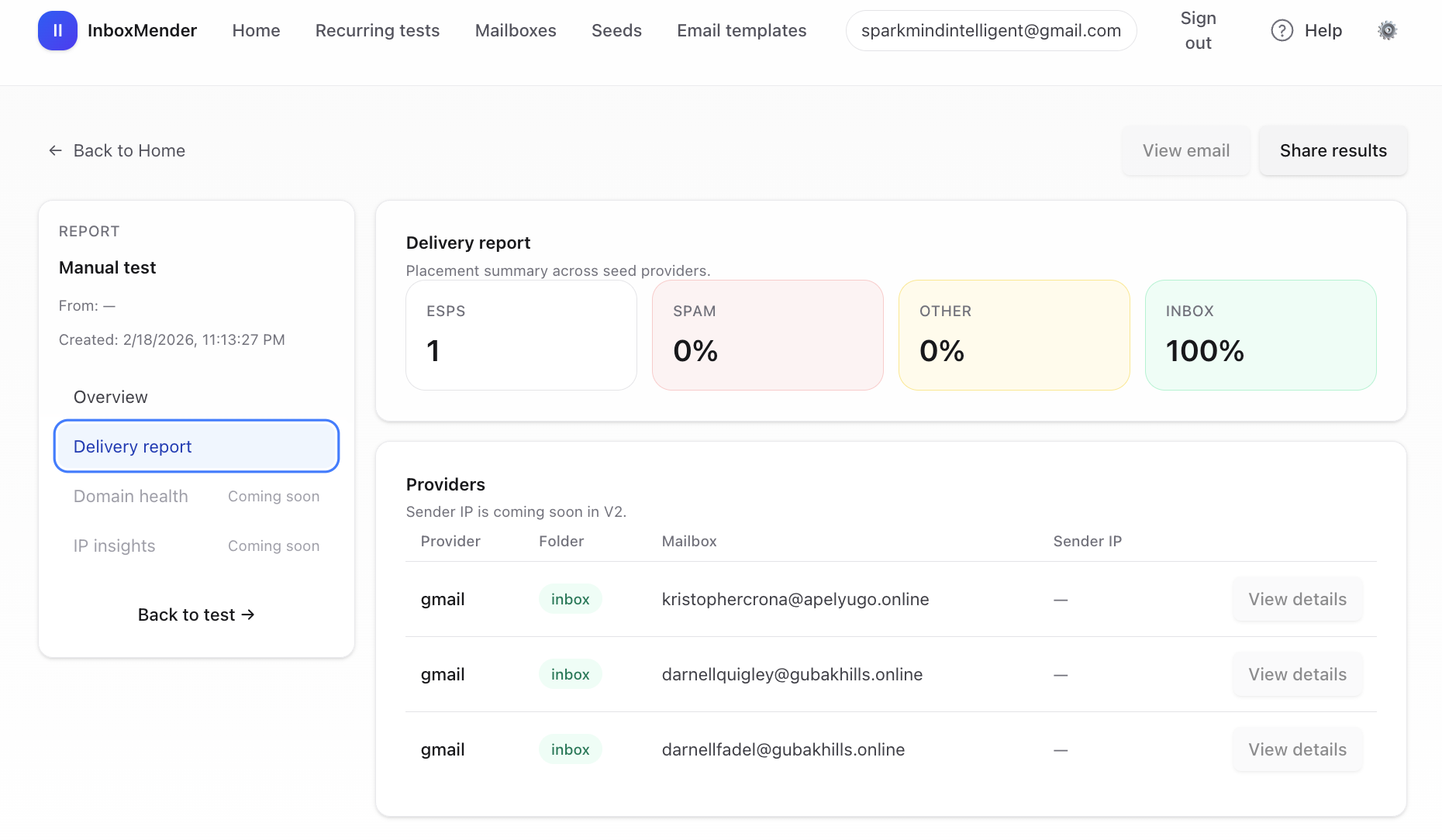
- Folder = inbox/spam/other (other usually means not found or not synced).
- Mailbox = the seed email address we checked.
- Sender IP is listed as “coming soon” in V2.
Domain health & IP insights (coming soon)
You may see sample cards for SPF/DKIM/DMARC/BIMI and IP reputation. These are placeholders until DNS and blacklist integrations are enabled.
What to do next (48h)
- Make sure SPF/DKIM/DMARC are aligned for the From domain.
- Reduce link/tracking complexity (too many domains hurts trust).
- If Spam appears, slow down sending volume and warm up gradually.
- Ensure List-Unsubscribe is configured and present for compliance.